How to Set up an Echo Dot for Elderly Parents: a Step-by-step Guide for Families
Your mum hasn’t been sleeping well, and she keeps calling you at odd hours just to ask what the weather will be like tomorrow. Your dad wants to hear his favourite Frank Sinatra songs but can’t figure out how to work the Bluetooth speaker you bought him last Christmas. These are exactly the problems an Amazon Echo Dot can solve, and the good news is that setting one up takes less time than you might think.
This guide walks you through the entire setup process, from unboxing to having Alexa answer your parent’s first question. By the end, you’ll also know how to customise a few key settings that make a real difference for older users, and you’ll have a list of fixes ready for the problems that almost always come up in the first week.
Quick Answer
To set up an Echo Dot for an elderly parent, plug the device into a power outlet, download the free Alexa app on your smartphone, and follow the in-app setup wizard to connect it to your parent’s Wi-Fi network. The whole process takes about 10 to 15 minutes, and you can complete it on their behalf using your own Amazon account or a dedicated account you create for them. Once it’s connected, Alexa is ready to use with no further technical knowledge required from your parent.
What You’ll Need Before You Start
- An Amazon Echo Dot (4th or 5th generation). The 5th generation costs around £55 to £60 and has slightly better sound, but either version works well for seniors. If your parent has vision concerns, consider the Echo Show 8 instead, which has a screen and costs around £110 to £130.
- The Wi-Fi network name and password for your parent’s home. This is the single most common sticking point. Find it on the back of their router before you sit down to do the setup.
- A smartphone or tablet with the free Amazon Alexa app installed. You’ll do the setup from this app, not from the Echo Dot itself.
- An Amazon account. You can use your own or create a new one specifically for your parent. We’ll explain the pros and cons of each approach below.
- A power outlet within reach of where you want to place the Echo Dot. The included power cable is about 1.5 metres long, so it doesn’t stretch far.
Step-by-Step: Setting Up the Echo Dot for Your Parent
Work through these steps in order. Don’t skip ahead, because the app needs each stage completed before it unlocks the next one.
Step 1: Choose the Right Amazon Account
Before you plug anything in, decide whose Amazon account will control this device. You have two real options. The first is to link the Echo Dot to your own Amazon account and then add your parent as a household member. This lets you manage everything remotely, including shopping lists and music subscriptions. The second option is to create a brand new Amazon account in your parent’s name. We generally recommend the first option for families who want to stay involved, because it means you can add contacts, update skills (Alexa’s word for apps), and troubleshoot from your own phone without needing your parent’s login details. If your parent is very independent and doesn’t want you seeing their purchase history, a separate account makes more sense.
Step 2: Plug In the Echo Dot
Take the Echo Dot out of the box and connect the small power adapter to the port on the back of the device. Plug the other end into a wall outlet. The ring around the top of the device will light up orange within a few seconds, which means it’s in setup mode and waiting to be configured. Place it somewhere central in the room, away from the TV if possible, because loud background noise can confuse the microphone. A kitchen counter or a bedside table tends to work well for most elderly users.
Step 3: Open the Alexa App and Add a New Device
Open the Alexa app on your phone. Tap the “Devices” icon at the bottom right of the screen, then tap the “+” button in the top right corner, and select “Add Device.” Choose “Amazon Echo” from the list, then select “Echo Dot.” The app will ask which generation you have. If you’re not sure, it’s printed on the bottom of the device. Follow the prompts until the app asks you to connect your phone to the Echo Dot’s temporary Wi-Fi network, which usually has a name like “Amazon-XXX.”
Step 4: Connect to Your Parent’s Wi-Fi
This is the step where most people hit a wall. The app will show a list of available Wi-Fi networks. Select your parent’s home network and type in the password carefully, paying attention to capital letters and numbers. If the password doesn’t work on the first try, go back to the router and double-check. Some older routers have a separate “2.4 GHz” and “5 GHz” network listed. The Echo Dot works on both, but it tends to connect more reliably to the 2.4 GHz network, especially in a house with thick walls. Once connected, the orange ring will turn blue and then go dark, which means the setup was successful.
Step 5: Set the Wake Word and Location
The app will now walk you through a few quick personalisation steps. The wake word is the word your parent says to get Alexa’s attention. It defaults to “Alexa,” which works fine. Some families change it to “Echo” or “Amazon” if the name Alexa belongs to someone in the family, because the device will respond to the spoken word anywhere in the room. Set your parent’s address in the app so that Alexa can give accurate local weather, news, and shopping delivery estimates.
Step 6: Add Contacts So Your Parent Can Make Calls
One of the best features for elderly users is the ability to call family members just by saying “Alexa, call [name].” To make this work, open the Alexa app, go to “Communicate” at the bottom of the screen, and grant the app permission to access your phone contacts. Alexa will then be able to match contact names to other Alexa users in the family. You can also set up “Drop In,” which lets you check in on your parent hands-free, almost like a video intercom. We’d recommend turning Drop In on for your own household but making it a confirmed request rather than automatic, so your parent doesn’t feel like someone can pop up on their screen without warning.
Step 7: Test It Together
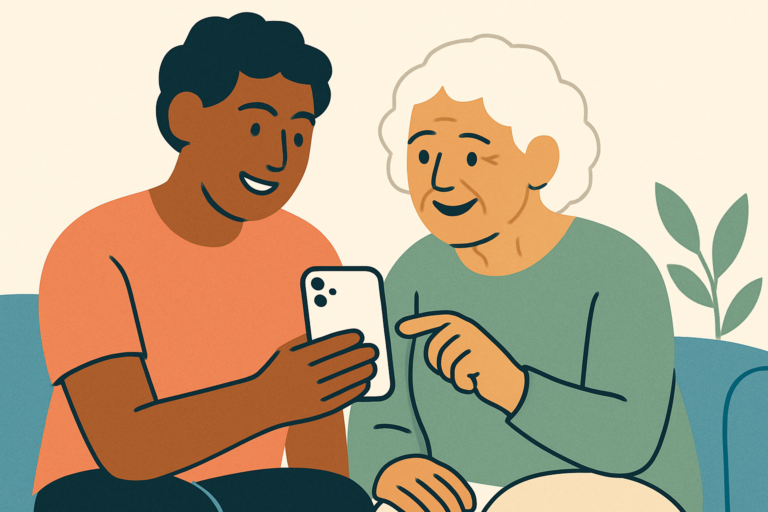
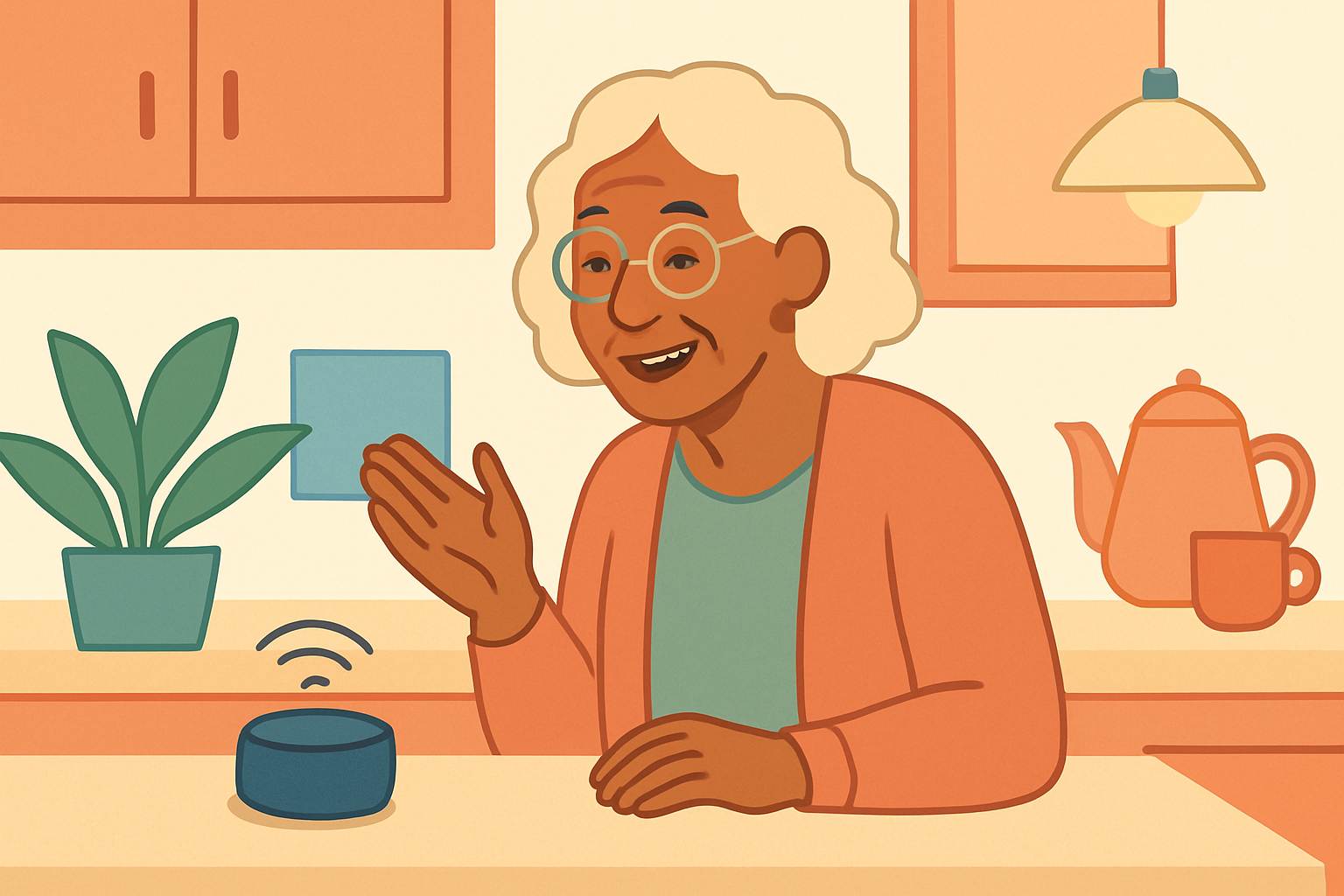
Before you leave, sit with your parent and run through a few commands together. Ask Alexa the weather, play a song they like, and set a reminder for a medication time if that’s relevant. Doing this together means your parent sees how easy it is, and it also shows you whether there are any response issues with the microphone placement. Encourage them to speak in a normal, clear voice rather than shouting. Alexa’s microphone is surprisingly sensitive.
Common Problems and How to Fix Them
Even when you follow these steps perfectly, a few things commonly go wrong. Here’s how to fix them:
Alexa Keeps Mishearing the Wake Word
If your parent has the TV on in the background, Alexa will sometimes wake up to voices from programmes. Move the Echo Dot away from the TV speaker, or try changing the wake word in the Alexa app under Device Settings. You can also turn on a setting called “Brief Mode,” which makes Alexa respond with a short chime instead of a spoken confirmation, which reduces the overall noise in the room.
The Echo Dot Won’t Connect to Wi-Fi
The most likely cause is a mistyped password. Go into your phone’s Wi-Fi settings and confirm you can connect to the same network without issues. If your parent’s router is old or the internet connection drops frequently, the Echo Dot will lose connectivity and show an orange ring. A quick fix is to unplug the Echo Dot for ten seconds and plug it back in. If the problem keeps happening, it’s worth considering a Wi-Fi range extender for around £25 to £40, especially in a larger home.
Your Parent Accidentally Makes Purchases
Alexa has a voice purchasing feature turned on by default, which means your parent could accidentally order something just by asking about it. Turn this off immediately by going into the Alexa app, selecting Settings, then Account Settings, then Voice Purchasing, and toggling it off. You can set a voice code as a safeguard instead, but honestly, switching it off entirely is the safer move for most elderly users.
Alexa Doesn’t Understand What Your Parent Is Saying
Older voices, accents, or quiet speech can sometimes trip up the voice recognition. Go into the Alexa app’s Settings menu and look for “Voice Training.” Running through the short training exercise with your parent’s voice can significantly improve accuracy over time. Also check that the Echo Dot isn’t sitting behind anything or tucked into a corner where sound is muffled.
Tips to Make It Easier Long-Term
- Print a cheat sheet. Write out eight to ten of the most useful commands in large font and stick it near the device. Things like “Alexa, what time is it?”, “Alexa, call [family member],” and “Alexa, set a reminder for 8pm” cover most of what elderly users want daily.
- Set up a Daily Routine. In the Alexa app, you can create a Routine that triggers automatically every morning. For example, at 8am Alexa can announce the weather, read a news briefing, and remind your parent to take their medication. This requires no input from your parent at all.
- Disable voice purchasing before you forget. We mentioned this in the troubleshooting section, but it’s worth repeating as a proactive step. Do it during setup so it’s never an issue.
- Keep the device plugged in at all times. Unlike a phone, the Echo Dot doesn’t need charging and works best when it’s always on. Remind your parent not to unplug it to charge other devices.
- Check in remotely using Alexa Together. Amazon offers a free service called Alexa Together (subscription costs around £15 to £20 a month in the UK) that’s designed specifically for remote caregiving. It includes activity alerts, a 24/7 urgent response line, and remote Routine setup. It’s worth considering if you don’t live nearby.
- Update the device automatically. Echo Dots update themselves overnight, so you don’t need to manage software updates. Just make sure the device stays plugged in and connected to Wi-Fi.
Our Recommended Products for This Setup
The standard Echo Dot works well for most elderly parents, but a couple of upgrades genuinely make day-to-day use easier for seniors, particularly those with hearing or vision concerns.
- Amazon Echo Dot (5th Generation): The improved speaker is noticeably louder and clearer than earlier versions, which matters a lot if your parent has any hearing difficulty. It costs around £55 to £60 and is our first recommendation for most families. Echo Dot 5th Generation
- Amazon Echo Show 8: If your parent would benefit from seeing who’s calling or reading the weather on a screen rather than just hearing it, the Echo Show 8 is worth the extra cost. The 8-inch screen is large enough to read without squinting, and it handles video calls with family members brilliantly. It runs around £110 to £130. Check price on Amazon →
- TP-Link Wi-Fi Range Extender: If your parent’s home has patchy Wi-Fi, a range extender placed between the router and the Echo Dot solves most connectivity problems. The TP-Link RE315 costs around £25 to £35 and is one of the easiest extenders to set up. TP-Link RE315 Range Extender
Frequently Asked Questions
Can I Set Up an Echo Dot Remotely for My Parent?
You can do part of the setup remotely, but not all of it. The physical steps, like plugging the device in and connecting it to Wi-Fi during initial setup, need to happen in person or with your parent’s hands-on help. Once the device is connected to the internet, however, you can manage almost everything else from the Alexa app on your own phone, including adding contacts, setting Routines, and changing settings. If you can’t visit in person, talk your parent through the setup over a video call, or ask a trusted neighbour to help with the initial plug-in.
What’s the Difference Between an Echo Dot and an Echo Show for Seniors?
The Echo Dot is audio-only, meaning Alexa speaks her responses out loud but doesn’t show anything visually. The Echo Show adds a touchscreen, which lets your parent see the weather, read reminders, and make video calls with family. For seniors who are comfortable with voice commands alone, the Echo Dot is perfectly capable and costs less. For seniors who struggle with hearing or who would benefit from visual confirmation that Alexa understood them correctly, the Echo Show 8 is genuinely worth the extra investment.
Is Alexa Safe for Elderly People to Use Alone?
Yes, with a couple of settings adjusted. The two most important changes are disabling voice purchasing (so your parent can’t accidentally order things) and reviewing which “Skills” are enabled. Alexa Skills are third-party features that users can add, and while most are harmless, some aren’t designed with elderly users in mind. Stick to built-in Alexa features for the first few months and only add Skills you’ve personally reviewed.
Can My Parent Use Alexa Without a Smartphone?
Your parent doesn’t need a smartphone to use the Echo Dot day-to-day. They just talk to it. You need a smartphone to complete the initial setup and to manage settings going forward, but once it’s set up, your parent can use every core feature, calling, reminders, music, weather, timers, without touching a phone at all. That’s actually one of the biggest advantages for elderly users.
What Happens If My Parent Unplugs the Echo Dot by Accident?
Nothing is lost. The Echo Dot doesn’t store any data locally. When you plug it back in, it reconnects to Wi-Fi automatically and works exactly as before within about 30 seconds. All settings, contacts, and Routines are stored in Amazon’s cloud, so an accidental unplug won’t wipe anything. It can be worth labelling the power cable with a small sticker that says “Please leave plugged in” if your parent tends to tidy cables away.
Final Thoughts
Setting this up will likely take you a single visit of under an hour, but the patience you’ll need isn’t technical, it’s emotional. Your parent may feel embarrassed about needing help, or sceptical that a small round speaker will actually be useful to them. Give it two weeks. Once they’ve used it to call you without picking up a phone, or asked it to play a song they haven’t heard in decades, the scepticism usually fades fast. If you’re also thinking about ways to keep your parent safer at home more generally, pairing the Echo Dot with a medical alert device or a smart doorbell camera can turn a helpful gadget into something that genuinely gives the whole family peace of mind.