How to Set up an Iphone for Your Elderly Parent: a Step-by-step Guide for Families
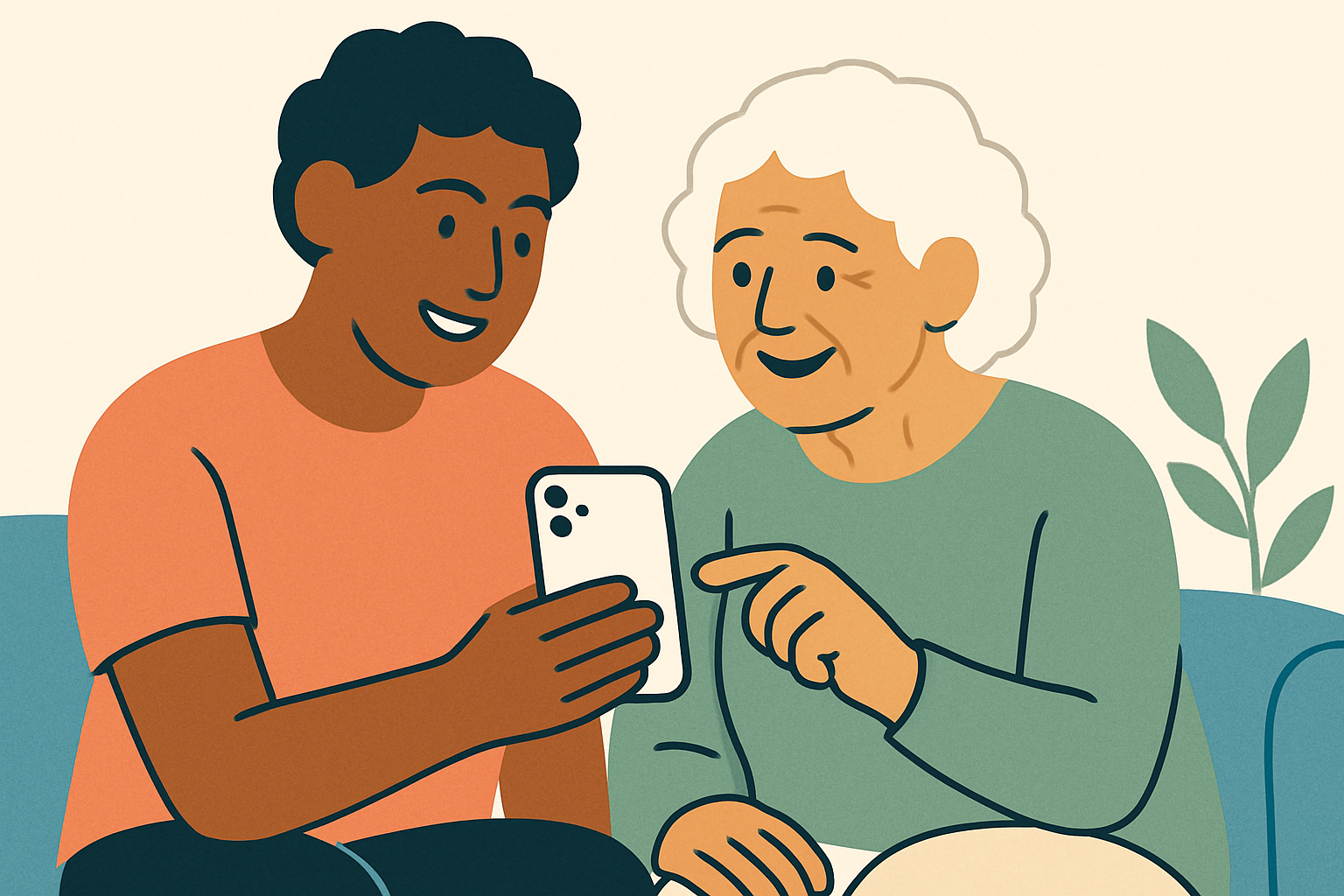
Your mum just got a new iPhone and within 48 hours she’s accidentally activated Siri three times, turned the screen so dark she can’t read it, and somehow ended up in a FaceTime call with someone she doesn’t recognise. Sound familiar? Getting a phone into a senior’s hands is the easy part. Getting it set up so it actually works for them is where most families hit a wall.
This guide walks you through exactly how to set up an iPhone for an elderly parent, from the very first screen to the accessibility tweaks that make the biggest difference. By the time you’re done, your parent will have a phone that’s easier to read, harder to accidentally mess up, and genuinely useful for staying connected with family.
Quick Answer
To set up an iPhone for a senior, start by creating or signing into an Apple ID, then go to Settings and turn on Accessibility features including larger text, Display Zoom, and AssistiveTouch. Set up emergency contacts via the Health app, enable Find My iPhone, and turn on Screen Time with Content & Privacy Restrictions so your parent can’t accidentally purchase apps or change critical settings. The whole process takes about 45 minutes if you do it properly.
What You’ll Need Before You Start
- The iPhone itself, charged to at least 50% before you begin
- Your parent’s Wi-Fi network name and password
- An email address to use for their Apple ID (create a new Gmail address if they don’t have one)
- A credit or debit card to attach to the Apple ID (you can use your own and control purchases via Family Sharing)
- About 45 to 60 minutes of uninterrupted time, ideally sitting together in person
Step-by-Step: Setting Up an iPhone for a Senior Parent
Work through these steps in order. Each one builds on the last, and skipping ahead often causes problems you’ll need to backtrack to fix.
Step 1: Complete the Initial iPhone Setup
Turn the iPhone on and you’ll see “Hello” in multiple languages. Swipe up or press the home button to begin. The setup wizard will ask you to choose a language, connect to Wi-Fi, and either restore from a backup or set up as a new phone. If your parent is switching from an older iPhone, restoring from a backup is the fastest option. If this is their first iPhone, choose “Set Up as New iPhone.” When you reach the Apple ID screen, sign in with an existing Apple ID or tap “Don’t have an Apple ID” to create one. We’d recommend using your parent’s own email address to create the ID, that way it belongs to them genuinely, even if you manage it on their behalf.
Step 2: Set Up Face ID or a Simple Passcode
Face ID is actually a great choice for seniors because it removes the frustration of typing in a passcode with arthritic fingers. If your parent wears glasses, set up Face ID with the glasses on. If they often have trouble holding the phone at the right angle, go to Settings, then Face ID & Passcode, and enable “Accessibility Options” under Face ID setup, which makes recognition less strict about the angle. If Face ID isn’t an option, set a six-digit passcode and write it on a card you keep somewhere safe at their home. A four-digit pin is slightly easier to remember but a little less secure.
Step 3: Turn On the Key Accessibility Settings
This is the most important step for seniors, and the one most people skip. Go to Settings, then Accessibility. Here’s what we’d turn on for almost every elderly parent:
- Display & Text Size: Turn on “Larger Text” and drag the slider to at least two or three steps above the default. Turn on “Bold Text” too. It makes a surprisingly big difference.
- Display Zoom: Go back to Settings, then Display & Brightness, then Display Zoom, and select “Larger Text.” This makes icons and everything on screen physically bigger.
- AssistiveTouch: Found under Accessibility, then Touch. This puts a floating button on screen that gives quick access to common actions, which is a lifesaver if your parent has trouble pressing the side button or volume buttons.
- Speak Screen: Under Accessibility, then Spoken Content, turn on “Speak Screen.” Your parent can swipe down with two fingers from the top of any screen and the phone will read it aloud.
- Reduce Motion: Under Accessibility, then Motion. Turn this on to stop the screen from doing animated transitions that can disorient some seniors.
Step 4: Configure the Phone App for Easy Calling
Your dad keeps accidentally calling people because his contacts list is cluttered with hundreds of old names and his fingers slip. Fix this by going to the Phone app, tapping “Favorites,” and adding the five or six people he calls most often. These appear at the top of the phone app every time he opens it. You can also go to Settings, then Accessibility, then Touch, and turn on “Call Audio Routing” to automatically send calls to a speaker or hearing aid. If your parent uses hearing aids, check that they’re listed under Settings, then Accessibility, then Hearing Devices.
Step 5: Set Up Emergency SOS and Medical ID
This step could genuinely save your parent’s life. Open the built-in Health app (it’s the white app with a red heart). Tap your parent’s profile picture in the top right corner, then tap “Medical ID,” then “Edit.” Fill in their medical conditions, medications, allergies, blood type, and add you as an emergency contact. Make sure “Show When Locked” is turned on. Now, anyone who picks up the phone in an emergency, including paramedics, can access this information without unlocking it. Emergency SOS is already built in: pressing the side button five times quickly calls 999 in the UK or 911 in the US.
Step 6: Turn On Find My iPhone
Go to Settings, tap your parent’s name at the top, then tap “Find My,” then “Find My iPhone,” and switch it on. Also turn on “Send Last Location,” which automatically records the phone’s location when the battery is almost dead. This lets you locate the phone if it gets lost or left somewhere, and in a more serious situation, it can help you locate your parent if they have a health emergency while out alone.
Step 7: Use Screen Time to Lock Down Critical Settings
Screen Time sounds like a tool for managing children’s phone use, and it is, but it’s also genuinely useful for protecting seniors from accidentally changing settings they shouldn’t touch. Go to Settings, then Screen Time, and turn it on. Set a Screen Time passcode that only you know (not your parent). Then go to Content & Privacy Restrictions and turn it on. Under “iTunes & App Store Purchases,” set “In-App Purchases” to “Don’t Allow.” Under “Allow Changes,” set “Passcode Changes” and “Account Changes” to “Don’t Allow.” This stops your parent from accidentally changing the Apple ID password or making app purchases.
Common Problems and How to Fix Them
Even when you follow these steps perfectly, a few things commonly go wrong. Here’s how to fix them:
The Text Is Still Too Small to Read
If you’ve already increased text size in Accessibility settings and it’s still not big enough, go back to Settings, then Accessibility, then Display & Text Size, and make sure “Larger Accessibility Sizes” is turned on. Then drag the text size slider all the way to the right. This unlocks text sizes larger than the standard maximum. You may also want to switch to Display Zoom if you haven’t already.
Your Parent Keeps Accidentally Activating Siri
This happens constantly with seniors who hold the phone in unusual ways. Go to Settings, then Siri & Search, and turn off “Press Side Button for Siri” and “Allow Siri When Locked.” If your parent still wants to use Siri, they can turn it back on for “Hey Siri” only, which requires a deliberate voice prompt rather than an accidental button press.
The iPhone Keeps Locking Too Quickly
Seniors often set the phone down mid-task and return to find it locked. Go to Settings, then Display & Brightness, then Auto-Lock, and change it to 5 minutes. We wouldn’t go to “Never” because that drains the battery and is a security risk, but 5 minutes gives plenty of time to finish a task without the screen going dark.
Tips to Make It Easier Long-Term
- Set up Family Sharing: Go to Settings, tap your parent’s name, then “Family Sharing.” This lets you approve app downloads remotely, share a family Apple subscription, and see your parent’s location from your own phone without any extra apps.
- Create a simple home screen: Remove every app your parent doesn’t use. Press and hold any app, tap “Remove App,” then “Remove from Home Screen.” Leave only Phone, Messages, FaceTime, the Camera, and any one or two apps they actually want. Less clutter means less confusion.
- Make a laminated cheat sheet: Write down the steps for their three most common tasks (making a call, sending a message, answering FaceTime) and laminate it. Keep it next to the phone. It sounds old-fashioned but it genuinely reduces the number of panicked phone calls you’ll receive.
- Turn on automatic updates: Go to Settings, then General, then Software Update, then Automatic Updates, and turn on both “Download iOS Updates” and “Install iOS Updates.” Security patches install overnight without your parent needing to do anything.
- Set up a Shortcut for common tasks: The Shortcuts app lets you create a big, labelled button on the home screen that does one specific thing, like “Call [Your Name]” with a single tap. These are especially useful for parents who struggle to find contacts.
- Enable Guided Access for specific apps: If your parent uses the phone mostly for one thing, like video calling you, go to Settings, then Accessibility, then Guided Access. This locks the phone into one app so they can’t accidentally exit and get lost in another screen.
Our Recommended Products for This Setup
The right accessories make a real difference for seniors using an iPhone. A phone that’s hard to hold or hard to hear is a phone that gets left on the nightstand.
- OtterBox Commuter Series Case for iPhone: Bulkier than a slim case, but that’s the point. The extra grip and raised edges make the phone much easier for seniors to hold securely, and it survives drops onto hard floors. Prices typically range from £35 to £55 depending on the iPhone model. OtterBox Commuter Series iPhone Case
- PopSockets PopGrip: This attaches to the back of the phone and gives your parent something to loop their finger through, dramatically reducing the chance of dropping it. It costs around £10 to £15 and is one of the most effective low-tech solutions for seniors with weak grip. PopSockets PopGrip
- Apple AirPods (3rd Generation) or AirPods Pro: For seniors who struggle to hear phone calls clearly, AirPods are genuinely transformative. The AirPods Pro include a “Conversation Boost” feature that uses the microphones to amplify the voice of whoever is talking directly in front of your parent, which is useful far beyond just phone calls. Prices run from around £169 for standard AirPods to £229 for the Pro version. Apple AirPods Pro
Frequently Asked Questions
Can I Set Up My Parent’s iPhone Remotely Without Being There in Person?
You can do quite a lot remotely once the phone is already active and connected to Wi-Fi. Using Apple’s Remote Management features or a third-party app like TeamViewer QuickSupport (free), you can see your parent’s screen on your own device and guide them through changes. The initial setup, however, does require someone to physically hold the phone and tap through the screens, so try to do that part in person or ask a trusted neighbour to help.
What’s the Best iPhone Model for an Elderly Person?
We’d recommend the iPhone 15 or iPhone 14 in the standard size for most seniors. The Plus or Pro Max versions have larger screens which can help with readability, but they’re also heavier and harder to hold one-handed. The regular iPhone 15 hits the best balance of screen size, weight, and battery life. Avoid the iPhone SE if your parent has any vision difficulties, the screen is noticeably smaller and the battery life is shorter.
Should I Set Up a Separate Apple ID for My Parent or Share Mine?
Give your parent their own Apple ID, not yours. Sharing an Apple ID causes messages and calls intended for you to appear on their phone and vice versa. It also means you can’t use Family Sharing properly, which is one of the most useful tools for managing a senior’s device remotely. Set up their own ID, then link it to yours via Family Sharing in Settings.
How Do I Stop My Parent From Accidentally Deleting Apps?
Go to Settings, then Screen Time, then Content & Privacy Restrictions, then iTunes & App Store Purchases. Set “Deleting Apps” to “Don’t Allow.” Your parent will still be able to open and use all their apps normally, but pressing and holding an icon won’t give them the option to delete it.
My Parent Has Hearing Loss. Are There Specific iPhone Settings That Help?
Yes, several. Go to Settings, then Accessibility, then Audio & Visual. You can increase the maximum headphone volume limit, turn on “Phone Noise Cancellation” to reduce background noise during calls, and enable “LED Flash for Alerts” so the camera flash blinks when the phone rings. If your parent wears Bluetooth hearing aids, go to Settings, then Accessibility, then Hearing Devices to pair them directly with the iPhone so calls stream straight to the aids.
Final Thoughts
Setting up an iPhone properly for an elderly parent takes more time than just handing them the box, but the difference it makes to their daily confidence with technology is worth every minute. Be patient with yourself too, because you’ll almost certainly need to go back and tweak a few settings after they’ve used it for a week. If you want to go one step further with your parent’s safety, pairing this iPhone setup with a medical alert system or a fall detection wearable gives you an extra layer of peace of mind, especially for parents who live alone.