How to Set up Google Nest Hub for Elderly Parents: a Step-by-step Guide for Families
Your mum keeps missing her medication reminders, or your dad has been asking you to call him more often because he’s lonely and doesn’t know how to video chat on his own. Sound familiar? The Google Nest Hub is one of the best tools we’ve found for helping elderly parents stay connected, on schedule, and a little more independent — without needing to wrestle with a smartphone.
This guide walks you through the entire setup process for the Google Nest Hub, from plugging it in to making sure your parent can actually use it confidently. By the end, you’ll have it connected to Wi-Fi, linked to a Google account, and ready for video calls, photo slideshows, reminders, and hands-free voice commands.
Quick Answer
To set up a Google Nest Hub for an elderly parent, download the Google Home app on your smartphone, plug in the Nest Hub, and follow the in-app prompts to connect it to your parent’s Wi-Fi and a Google account. The whole process takes around 20 to 30 minutes. We strongly recommend setting it up yourself in person rather than talking your parent through it over the phone — there are too many small screen confirmations that are easy to miss.
What You’ll Need Before You Start
- A Google Nest Hub (2nd generation recommended): The 2nd gen model costs roughly $60 to $100 USD depending on sales. It adds a sleep tracking sensor and better sound, but more importantly it’s the version Google is actively supporting with updates.
- Your parent’s Wi-Fi name and password: Write this down before you arrive. Nothing slows setup down more than hunting for the router password.
- A Google account for your parent: A Gmail address works perfectly. If they don’t have one, you can create one during setup — it takes about five minutes.
- The Google Home app on your smartphone: Download it free from the Apple App Store or Google Play Store before you go. Sign in with your own Google account first.
- A good spot for the device: A kitchen counter, bedside table, or living room shelf works well. It needs a power outlet nearby and decent Wi-Fi signal.
Step-by-Step: Setting Up the Google Nest Hub for an Elderly Parent
Take your time with each step. There’s no rush, and going slowly now means fewer confused phone calls later.
Step 1: Choose the Right Location
Before you even open the box, pick where the Nest Hub is going to live. The kitchen counter is our top pick for most families because it’s where people already spend time, and it makes setting cooking timers and medication reminders feel natural. Avoid putting it somewhere your parent rarely goes, like a spare bedroom — out of sight really does mean out of mind with this kind of device. Make sure the spot has a power outlet within reach of the included cable (it’s about 1.5 metres long) and that your phone shows at least two Wi-Fi signal bars when you stand there. Weak Wi-Fi is the number one cause of a Nest Hub that “doesn’t work properly.”
Step 2: Plug It In and Open the Google Home App
Plug the Nest Hub into the wall using the included power adapter. The screen will light up with a welcome animation within a few seconds. Now open the Google Home app on your phone. Tap the “+” icon in the top left corner, then tap “Set up device,” then “New device.” The app will ask which home to add it to — if this is your parent’s setup, it’s worth creating a separate Home in the app labeled something like “Mum’s House.” This makes it much easier to manage their device remotely later without mixing it up with your own smart home gadgets.
Step 3: Connect to Wi-Fi
The Google Home app will search for nearby Nest devices. When it finds yours, it’ll show the device name on screen — tap it. You’ll then be asked to confirm a code shown on both your phone and the Nest Hub’s screen. Make sure the four-symbol code matches on both screens before tapping “Yes.” After that, select your parent’s Wi-Fi network from the list and enter the password. If their network name doesn’t appear, scroll down and tap “Other network” to type it manually. This is also the step where weak Wi-Fi will reveal itself — if the connection keeps failing, try moving the Nest Hub closer to the router temporarily just to finish setup.
Step 4: Sign In to a Google Account
The app will now ask which Google account to link to the device. This is an important decision. We recommend creating a dedicated Google account for your parent rather than using yours, because their contacts, calendar, and photos should live in their own account. If they already have a Gmail address, sign in with that. If not, tap “Create account” and follow the prompts — you’ll need a backup email address or phone number for account recovery, so use yours as the backup. Once signed in, the Nest Hub will sync with that account’s Google Calendar (great for medication reminders), Google Photos (lovely for showing family photos on the screen), and Google Contacts (essential for video calling).
Step 5: Set Up Google Duo (Now Called Google Meet) for Video Calling
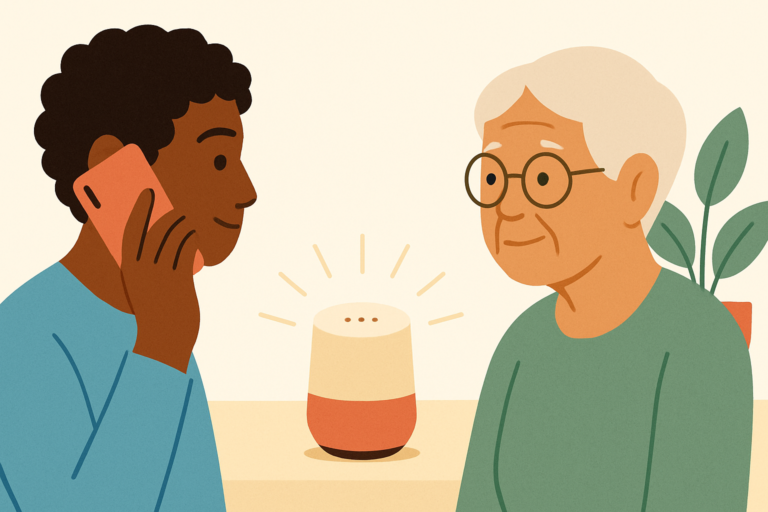
Video calling on the Nest Hub uses Google Meet, which was previously called Google Duo — you may see both names depending on which version of the software is installed. During setup, the app will ask to verify a phone number for calls. Enter your parent’s mobile number here. This is what allows family members to call the Nest Hub directly from their phones using Google Meet or the Google Home app. Once this is done, your parent can say “Hey Google, call [your name]” and the Nest Hub will ring you immediately. Make sure you’re saved in their Google Contacts with the exact name they’re likely to use.
Step 6: Add Family Photos as a Screensaver
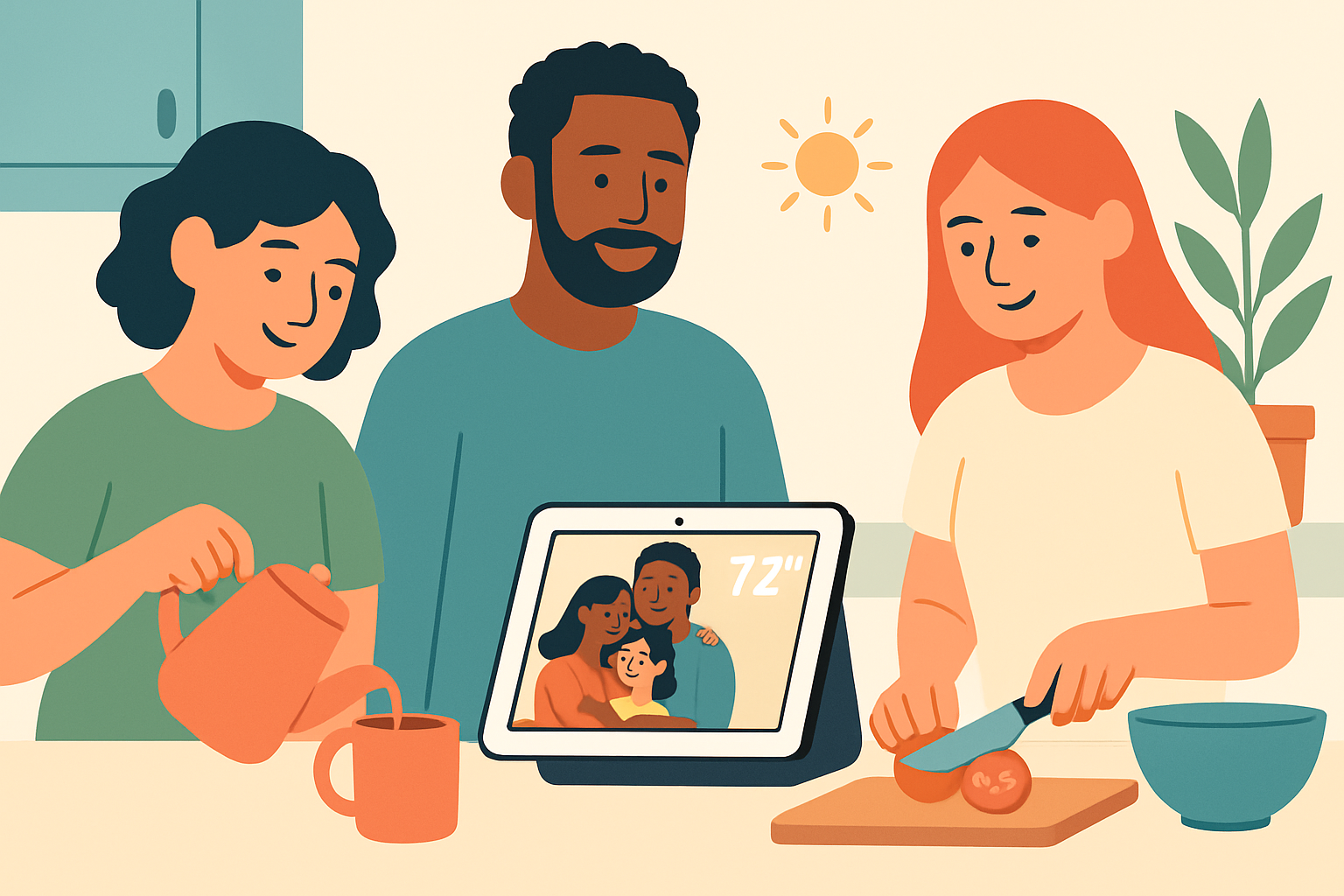
This is the step that genuinely makes elderly parents love the device. In the Google Home app, go to your parent’s device settings, tap “Photo frame,” and link it to a Google Photos album. You can create a shared album and add pictures of grandchildren, holidays, and family gatherings. The Nest Hub will cycle through those photos whenever it’s not actively being used. We’ve seen this single feature turn skeptical grandparents into enthusiastic users within a week — there’s something powerful about glancing over and seeing a photo of a grandchild pop up on screen.
Step 7: Set Up Reminders and a Morning Routine
Now set up at least one reminder before you leave. In the Google Home app, tap your parent’s device, then go to “Routines.” You can create a morning routine that reads out the day’s weather, any calendar events, and a gentle reminder to take medication. For the medication reminder specifically, go to Google Calendar on your parent’s account and add a recurring daily event at the right time with the title “Time to take your medication.” The Nest Hub will announce it out loud and show it on screen. This is far more reliable than a pill alarm that your parent might sleep through or ignore.
Common Problems and How to Fix Them
Even when you follow these steps perfectly, a few things commonly go wrong. Here’s how to fix them:
The Nest Hub Won’t Connect to Wi-Fi
First, double-check that you’re entering the Wi-Fi password correctly — it’s case-sensitive. If you’re sure the password is right, check whether your parent’s router uses a 5GHz network only. The Nest Hub 2nd gen supports both 2.4GHz and 5GHz, but some older routers broadcast them as separate networks with slightly different names. Try connecting to the 2.4GHz version (it usually has “2.4G” in the network name) as it has better range through walls. If it still fails, restart the router by unplugging it for 30 seconds, then try again.
The Device Doesn’t Recognise Your Parent’s Voice
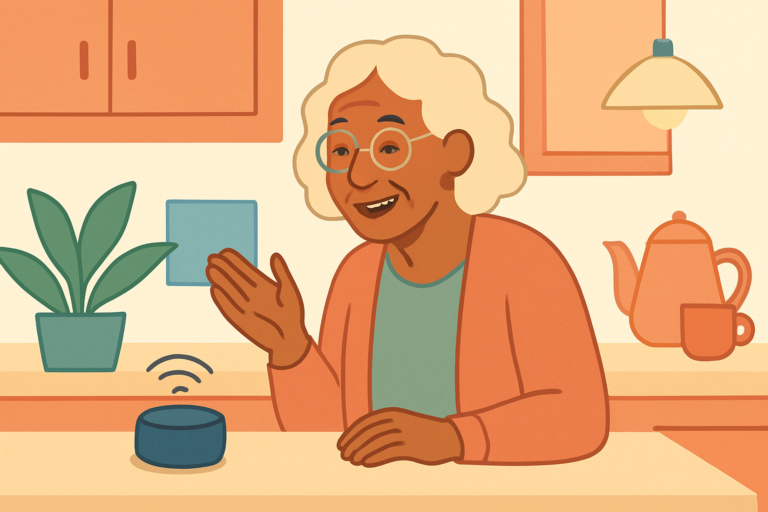
The Nest Hub has a “Voice Match” feature that can be trained to recognise specific voices, which helps it personalise responses. Go to the Google Home app, tap your parent’s device, then “Audio,” then “Voice Match,” and have your parent say the prompted phrases clearly. This takes about two minutes. If they have a quiet or soft voice, position the Nest Hub no more than about two metres away from where they usually sit or stand when talking to it.
Video Calls Aren’t Working
The most common cause is that the phone number verification didn’t complete during setup. Go back into the Google Home app, tap the device, go to “Video calls,” and check that a phone number is listed and verified. Also make sure the person trying to call your parent has the Google Meet app installed on their phone — regular phone calls won’t come through to the Nest Hub, only Google Meet calls will.
Tips to Make It Easier Long-Term
- Laminate a cheat sheet: Write down five or six voice commands your parent will actually use (“Hey Google, call Sarah,” “Hey Google, set a timer for 10 minutes,” “Hey Google, what’s the weather today?”) and tape it to the wall near the device. This removes the fear of forgetting what to say.
- Turn off accidental purchases: In the Google Home app, go to Settings and disable purchasing. Your parent won’t be shopping via the Nest Hub, and this prevents any accidental voice-activated orders.
- Set a comfortable volume level: Elderly parents with hearing loss often miss the device’s responses. Set the default volume higher than you think necessary — around 70 to 80 percent. You can do this in the app or by saying “Hey Google, set volume to 8.”
- Enable Guest Mode carefully: We recommend leaving Guest Mode off for elderly parents. It allows anyone nearby to cast content to the device without being on the Wi-Fi, which can cause confusing interruptions.
- Check in remotely using the Google Home app: You can see whether the device is online and even broadcast a message to it from the app. If your parent hasn’t used it in a few days and you’re worried, you can send a voice message that plays through the Nest Hub’s speaker. It’s not a security camera, but it’s a gentle check-in tool.
- Schedule a weekly “practice call”: For the first month especially, schedule a regular video call with your parent on the Nest Hub. The repetition builds the muscle memory so that calling for help eventually feels natural rather than stressful.
Our Recommended Products for This Setup
A few products pair really well with the Nest Hub for elderly parents, either making the device itself more accessible or solving common problems we’ve run into when setting these up for families.
- Google Nest Hub (2nd Generation): This is the core device. The 7-inch screen is large enough for video calls without being overwhelming, and it sits at a good angle on a countertop. We prefer this over the larger Nest Hub Max for elderly parents because it’s less intimidating and the smaller footprint fits more spots in a home. Check price on Amazon →
- Amazon Basics Non-Slip Silicone Mat: A small silicone mat under the Nest Hub stops it from sliding when your parent taps the screen. It costs just a few dollars and prevents a surprising amount of frustration. Amazon Basics Non-Slip Mat
- TP-Link Wi-Fi Range Extender (RE315 or similar): If your parent’s home has weak Wi-Fi in the room where the Nest Hub will live, a plug-in range extender in the $25 to $40 price range solves the problem permanently. A stable connection is non-negotiable for reliable video calls. TP-Link Wi-Fi Range Extender
Frequently Asked Questions
Can I Set Up the Google Nest Hub Remotely for My Parent?
You can manage the device remotely once it’s set up, but the initial setup really does need someone present with the physical device and the parent’s Wi-Fi password. The setup process requires confirming codes on the device’s screen and connecting to Wi-Fi, neither of which you can do from a distance. If you genuinely can’t visit, a trusted neighbour or a local tech support service could do the physical setup while you guide them by video call.
Does My Parent Need a Smartphone to Use the Nest Hub?
No. Once it’s set up, your parent doesn’t need a smartphone at all. They just speak to it. The smartphone (yours or theirs) is only needed during the initial setup process to run the Google Home app. After that, the Nest Hub works entirely on voice commands and touch.
What Happens If the Internet Goes Down?
The Nest Hub won’t work without an internet connection — it can’t make calls, set reminders, or answer questions offline. It will display a “No internet” message on screen. If internet outages are common in your parent’s area, it’s worth pairing the Nest Hub with a backup landline or a medical alert device so your parent isn’t left without any way to reach help.
Can My Parent Use the Nest Hub to Call 911 or Emergency Services?
No. The Google Nest Hub cannot call emergency services. This is a critical limitation to explain to elderly parents who might assume it can. For emergency calls, your parent still needs a phone or a dedicated medical alert system. The Nest Hub is a wonderful communication and organisational tool, but it shouldn’t replace a personal emergency device for anyone living alone.
How Do I Stop My Parent from Accidentally Changing Settings?
The best protection is the Google Home app on your phone. You manage most settings from there, and your parent can’t change them just by speaking to the device. For extra protection, go into the Nest Hub’s device settings in the app and disable “Personal results” if you don’t want it accessing sensitive calendar or account information unless you’ve explicitly set it up. You can also set up a PIN code for purchases and certain settings in the app.
Final Thoughts
Getting this set up properly takes a couple of hours when you factor in the account creation, the Wi-Fi troubleshooting, and the time spent showing your parent how to use it — and that’s completely normal. Don’t rush the handover part. Sit with your parent, make a few test calls together, and let them practise saying “Hey Google” a few times before you leave. The confidence they gain in that first session makes all the difference. If you’re thinking about adding another layer of safety for a parent who lives alone, pairing the Nest Hub with a wearable medical alert button gives you real peace of mind without making their home feel clinical.