How to Set up a Ring Doorbell for Elderly Parents: a Step-by-step Guide for Families
Your mum or dad hears a knock at the door and by the time they get up, walk over, and peer through the peephole, whoever was there is already gone. Or worse, they open the door without knowing who’s on the other side. If that scenario sounds familiar, a Ring video doorbell can genuinely change the safety picture at your parent’s home.
This guide walks you through the entire process of setting up a Ring doorbell for an elderly parent, from unboxing to the first live video call. By the time you’re done, your parent will be able to see and speak to anyone at their front door directly from their phone or tablet, and you’ll be able to check in on their front porch from anywhere in the world.
Quick Answer
To set up a Ring doorbell for elderly parents, download the Ring app on your phone, create a Ring account, connect the doorbell to your parent’s home Wi-Fi network through the app’s guided setup, then mount the device next to the front door. The whole process takes roughly 30 to 60 minutes and requires only a screwdriver. Once it’s done, you can add your own phone as a second account so you get visitor alerts too.
What You’ll Need Before You Start
- The Ring doorbell itself. We recommend the Ring Video Doorbell 4 (around $100 USD) for most families. It has battery backup, decent night vision, and doesn’t require any existing doorbell wiring to work.
- Your parent’s Wi-Fi network name and password. Write this down before you arrive. Nothing slows down an installation faster than hunting for a router password.
- A smartphone with the Ring app installed. Use your own phone for the initial setup, not your parent’s. You’ll share access afterward.
- A Phillips head screwdriver. The mounting hardware comes in the box.
- An email address for the Ring account. Create a fresh one for your parent if they don’t already have one. Something like [email protected] works fine.
Step-by-Step: Setting Up Your Parent’s Ring Doorbell
Work through these steps in order. Don’t skip ahead, especially the Wi-Fi step, because each stage builds on the last.
Step 1: Download the Ring App and Create an Account
On your own smartphone, go to the App Store (iPhone) or Google Play Store (Android) and download the free Ring app. Open it and tap “Create Account.” Use the email address you’ve set up for your parent and choose a password you’ll both remember. Write the login details down in a notebook your parent can keep by the router. Once you’re logged in, the app will prompt you to set up a device. Tap “Set Up a Device” and then “Doorbells.”
Step 2: Charge the Battery Before Anything Else
If you bought the battery-powered Ring Video Doorbell 4, the battery is removable and almost certainly won’t be fully charged out of the box. Pop the battery out of the back of the device, plug it into the included orange USB cable, and charge it fully before continuing. This usually takes a couple of hours. A full battery means your parent won’t lose video coverage within the first week, which would create confusion and erode their trust in the device. Use this waiting time to check the Wi-Fi signal strength near your parent’s front door.
Step 3: Connect the Ring to Your Parent’s Wi-Fi
With the battery charged and back in the device, hold the orange button on the front of the Ring for about three seconds until the light on the front spins. This puts it into setup mode. Back in the Ring app, follow the on-screen prompts and select your parent’s Wi-Fi network from the list. Type in the Wi-Fi password carefully. Lowercase and uppercase letters both matter here, so double-check before tapping “Continue.” The app will confirm when the connection is successful with a green checkmark on screen and a spinning white light on the doorbell itself.
One common trip-up: if your parent’s router broadcasts both a 2.4 GHz and a 5 GHz network (they’ll often have slightly different names, like “Smith_Home” and “Smith_Home_5G”), always choose the 2.4 GHz version. Ring doorbells work more reliably on 2.4 GHz, especially at the edge of the Wi-Fi range near a front door.
Step 4: Mount the Doorbell Next to the Front Door
The Ring app will walk you through positioning before you commit to drilling any holes. Use the included mounting bracket as a template and hold it against the wall next to the door at about chest height for your parent. That’s roughly 48 inches from the ground for most people. Ring recommends mounting it slightly to the side of the door rather than directly above, because angling it gives a better view of who’s standing on the step. Use the provided screws and anchor plugs for brick or masonry, or the shorter screws for wood frames. Tighten them until the bracket doesn’t wobble.
Step 5: Adjust Motion Zones and Alert Settings
Here’s where most people skip ahead too fast, and it causes problems later. Inside the Ring app, go to “Device Settings” and then “Motion Settings.” By default, Ring will alert your parent every time a car drives past the house. That’s overwhelming for anyone, but especially for an elderly person who then starts ignoring all the alerts. Shrink the motion zone down to cover just the front path and step. Set the sensitivity to “Light” or “Medium.” You want your parent to be alerted when a person walks up to the door, not when the neighbour’s cat crosses the street.
Step 6: Add Your Phone as a Shared User
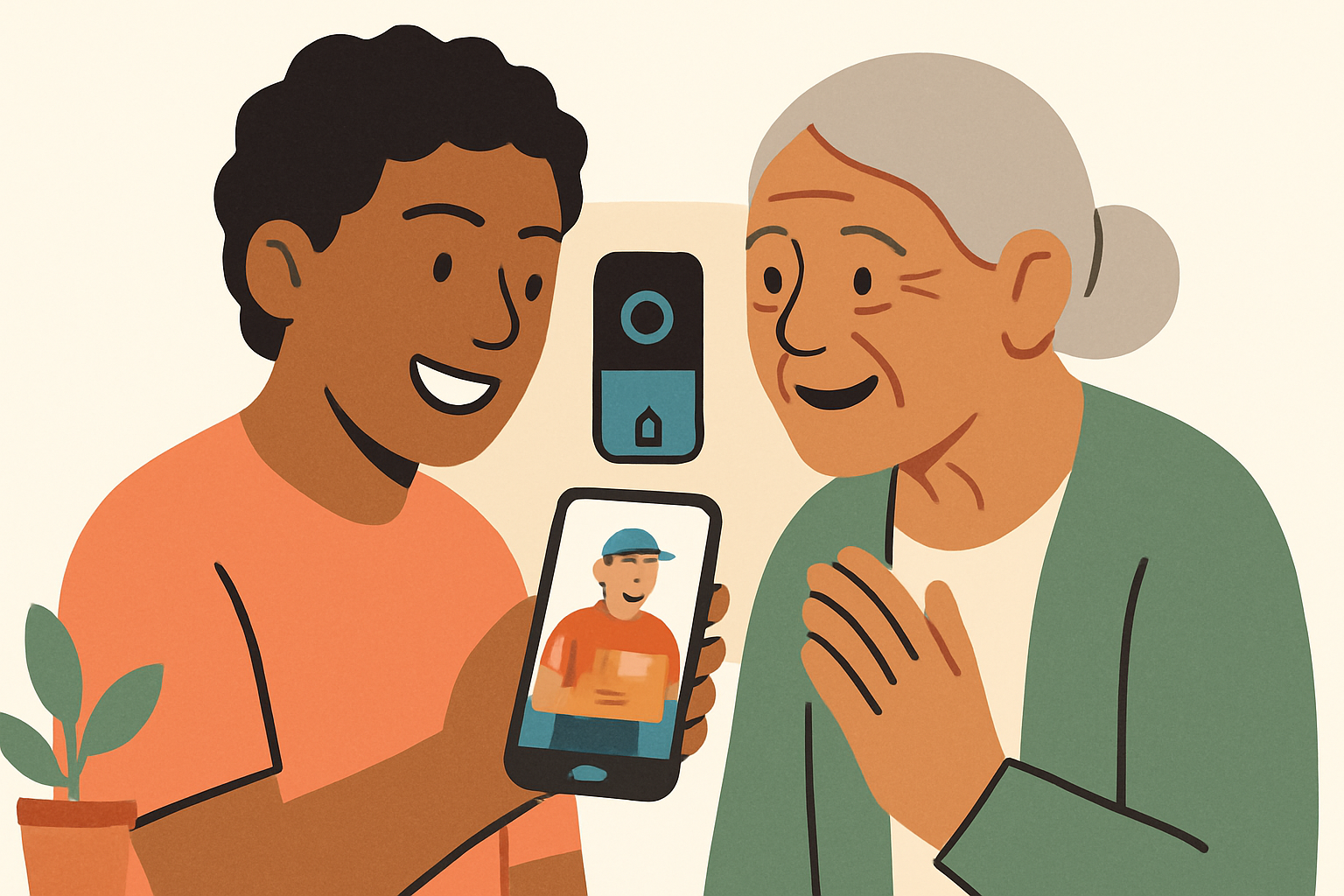
This step is what makes the setup genuinely useful for you as the adult child. In the Ring app, go to “Settings,” then “Shared Users,” and add your own email address. You’ll get your own Ring login and you’ll receive motion alerts and doorbell rings on your phone just like your parent does. When someone presses the bell, both of you get notified. If your parent doesn’t answer within a few seconds, you can pick up the live video call yourself and speak to whoever is at the door. This feature alone has given a lot of families real peace of mind.
Step 7: Set Up the Alexa Connection (Optional but Recommended)
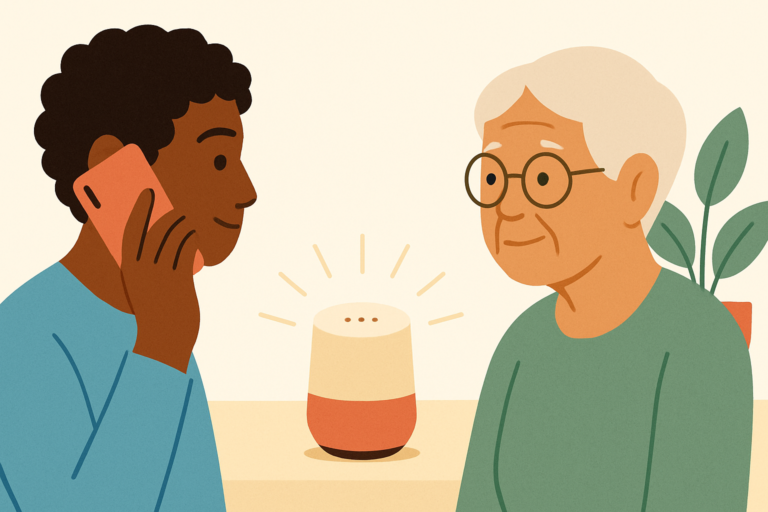
If your parent already has an Amazon Echo device in the living room, linking Ring to Alexa is worth the five extra minutes. Go to the Alexa app, tap “Devices,” then the “+” icon, and choose “Add Device” followed by “Camera.” Select Ring from the list and sign in with your parent’s Ring account details. Once linked, when someone rings the doorbell, the Echo can announce “Someone is at the front door” out loud. For parents who keep their phone on silent or can’t always hear it ring, this audible announcement is a genuine safety boost.
Common Problems and How to Fix Them
Even when you follow these steps perfectly, a few things commonly go wrong. Here’s how to fix them:
The Ring App Won’t Connect to the Doorbell During Setup
This almost always means the phone’s Bluetooth or Location Services are turned off. Ring uses Bluetooth during the initial pairing step. Go to your phone’s Settings, turn Bluetooth on, and make sure Location Services are enabled for the Ring app specifically. Then go back to the app and start the device setup again from the beginning. It connects quickly once those two things are active.
The Video Is Grainy or Keeps Cutting Out
Weak Wi-Fi signal at the front door is the number one cause of poor Ring video quality. Test the signal by standing at the front door with your phone and running a speed test using the free Speedtest app by Ookla. If you’re getting less than 2 Mbps (megabits per second) of upload speed at that spot, the Wi-Fi router is too far away. We recommend adding a Wi-Fi range extender near the front of the house. The TP-Link RE315 (around $30 USD) does a reliable job and is easy to plug in.
Your Parent Is Getting Too Many (or Too Few) Alerts
Go back to Motion Settings in the Ring app and adjust the motion zone and sensitivity. Too many alerts? Shrink the zone and lower sensitivity. Too few? Expand the zone or bump sensitivity up one level. It often takes a few days of tweaking to find the sweet spot for a specific property layout. Don’t treat the default settings as final.
The Battery Is Draining Very Quickly
Cold weather and high motion activity both drain Ring batteries faster than expected. If your parent lives somewhere with cold winters, expect to recharge every four to six weeks rather than the three to six months Ring advertises under ideal conditions. You can reduce drain by tightening the motion zone so fewer events trigger the camera to record. If constant recharging becomes a problem, consider the Ring Video Doorbell Pro 2, which hardwires to existing doorbell wiring and never needs a battery charge.
Tips to Make It Easier Long-Term
- Label the app icon on your parent’s phone. Put the Ring app on their home screen and write “Front Door Camera” as the label if their phone allows it. Clear labelling reduces confusion when they’re trying to find it quickly.
- Show them just one thing at first. Don’t try to teach your parent everything on day one. Start with just how to answer a doorbell ring from their phone. Introduce motion history and live view in a separate session a week later.
- Set up a Ring Protect Plan to save video history. Without a plan (starting around $4 per month), Ring doesn’t save any footage. If your parent has a suspicious visitor and you want to review what happened, you’ll need that recorded history.
- Check in via the Live View feature weekly. You can open the Ring app anytime and tap Live View to see your parent’s front porch in real time. It’s a quiet way to check that everything looks normal without calling and worrying them.
- Keep the Ring app auto-updates turned off on your parent’s phone. App updates sometimes change the interface layout, which confuses elderly users who’ve just learned where everything is. Update the app yourself during visits instead.
- Put the Wi-Fi password in a visible, safe spot. Tape it inside a kitchen cupboard. When the router restarts after a power cut, your parent won’t need to call you in a panic asking for the password.
Our Recommended Products for This Setup
Not every Ring product suits an elderly parent’s household equally well. These are the specific items we’d recommend to a friend setting this up for the first time, based on what actually works reliably and causes the fewest long-term headaches.
- Ring Video Doorbell 4 (around $100 USD): The best all-round choice for most families. Battery-powered so there’s no wiring required, and it has colour pre-roll video which captures a few seconds before the button is pressed. Check price on Amazon →
- Amazon Echo Show 5 (around $50 USD): When someone rings the doorbell, this small screen in your parent’s kitchen can automatically show the live camera feed without them needing to touch anything. For parents with mobility issues or who struggle with phones, this is genuinely the best way for them to see who’s at the door. Check price on Amazon →
- TP-Link AC1200 Wi-Fi Range Extender (around $30 USD): If your parent’s Wi-Fi signal doesn’t reach the front door reliably, this fixes the problem without replacing the whole router. Plug it in halfway between the router and the front door. TP-Link AC1200 Range Extender
Frequently Asked Questions
Can I Set Up a Ring Doorbell Remotely for My Parent?
You can do most of the account creation and settings configuration remotely through the Ring app, but the physical installation and initial Wi-Fi pairing need to be done in person at your parent’s home. The device needs to physically connect to their Wi-Fi network, which means someone has to be there with the doorbell in hand. Plan at least one visit to handle the hardware side of things.
Does My Parent Need a Smartphone to Use Ring?
They don’t have to, but it helps. The easiest setup for an elderly parent who struggles with smartphones is pairing Ring with an Amazon Echo Show. When someone presses the doorbell button, the Echo Show screen lights up with the live video feed automatically. Your parent just has to speak to answer. You can still manage everything remotely from your own phone, so your parent doesn’t need to touch an app at all.
What Happens to the Ring If the Wi-Fi Goes Down?
If the Wi-Fi goes down, the Ring doorbell stops sending alerts and video to phones and the app. The doorbell button still works in the sense that it chimes the original doorbell inside the house (if wired) or plays a chime through a Ring Chime device, but no video or remote access is possible until Wi-Fi is restored. This is worth explaining to your parent so they’re not alarmed when alerts stop during a router restart.
How Do I Stop My Parent from Accidentally Changing the Ring Settings?
The most practical approach is to set up the account on your own phone and keep the login details yourself. Give your parent access only through a Shared User account, which has more limited permissions. Shared users can answer calls and view live video, but they can’t change device settings or delete the device from the account. That way, even if your parent pokes around in the app, they can’t accidentally break the configuration you’ve set up.
Is Ring a Good Choice for a Parent Who Lives Alone?
We think it’s one of the better investments you can make for a parent who lives alone, specifically because it lets them screen visitors without opening the door. Distraction burglaries and doorstep scams targeting elderly people are genuinely common. Being able to say “I can see you on my phone” is often enough to deter someone with bad intentions. Pair it with the Shared User feature so you’re getting those same alerts, and you’ve added a real layer of security without making your parent feel like they’re being watched.
Final Thoughts
Setting up a Ring doorbell for an elderly parent takes a bit of patience, especially during the Wi-Fi pairing step, but it’s one of the most practical tech setups you can do for someone who lives alone. Once it’s running, the peace of mind on both sides of the relationship is real and ongoing. If you want to take your parent’s home safety a step further after completing this setup, look into pairing the Ring system with a medical alert device for inside the home, so both the front door and your parent’s personal safety are covered.