How to Use Alexa Drop in to Check on Elderly Parents: a Step-by-step Guide for Families
You’re at work, it’s mid-afternoon, and a quiet worry starts creeping in: your mom hasn’t called today, she didn’t mention any plans, and you just can’t shake the feeling that something might be off. Calling her phone means hoping she hears it, finds it, and actually picks up. That’s a lot of variables when you’re already anxious.
This guide walks you through exactly how to use Alexa Drop In to check on elderly parents, from setting up the devices to making your first call. By the end, you’ll be able to connect with your parent almost instantly, without either of you needing to touch a phone.
Quick Answer
To use Alexa Drop In to check on an elderly parent, both of you need an Amazon Echo device connected to Wi-Fi and linked to Amazon accounts in the Alexa app. You enable Drop In permissions in the app, then say “Alexa, drop in on [contact name]” from your device to connect instantly. The whole setup takes about 15 minutes once both devices are plugged in and online.
What You’ll Need Before You Start
- An Amazon Echo device for your parent — any Echo model works, but we strongly recommend one with a screen (like the Echo Show 8) so your parent can see who’s calling. More on this below.
- An Amazon Echo device or the Alexa app for yourself — you can Drop In from another Echo device or directly from the Alexa app on your smartphone.
- Two separate Amazon accounts — one for your parent, one for you. They don’t need to share an account, and in fact it works better when they don’t.
- Your parent’s home Wi-Fi name and password — write this down before you visit, or call their internet provider to find it if they’ve lost it.
- The Alexa app installed on your smartphone — it’s free and available for both iPhone and Android. You’ll need it even if you plan to Drop In from your own Echo device at home.
Step-by-Step: Setting Up Alexa Drop In for Your Parent
Work through these steps in order. Steps 1 through 3 you’ll likely do in person at your parent’s home. Steps 4 and 5 you handle from your own phone afterward.
Step 1: Set Up Your Parent’s Echo Device
Plug the Echo into a power outlet in a room your parent spends time in. The kitchen counter or living room side table both work well. Open the Alexa app on your smartphone, tap the Devices icon at the bottom right, then tap the plus sign (+) at the top right and choose “Add Device.” Follow the on-screen prompts, select your parent’s home Wi-Fi network, and enter the password when asked. The Echo’s light ring will turn orange while it’s connecting, then switch to blue and finally off when it’s ready. This whole process usually takes three to five minutes.
Tip: If the Echo keeps failing to connect, make sure you’re selecting the 2.4GHz Wi-Fi network rather than the 5GHz one. Older routers often only show one network name, but newer routers sometimes split them. The 2.4GHz band has better range through walls, which matters in older homes.
Step 2: Set Up Your Parent’s Alexa Contact Profile
Inside the Alexa app, tap the speech-bubble icon at the bottom of the screen to open Communicate. Tap the person icon at the top right to open your Contacts list. Alexa will ask permission to access your phone’s contacts. Grant it. Now find your parent’s name in the list. If they show up with a little Alexa logo next to their name, their Amazon account is already linked. If not, you may need to invite them by tapping “Invite” next to their name, which sends them an email asking them to connect via Alexa.
For Drop In to work between two households, both people need to appear as Alexa contacts in each other’s apps. This is the step most families skip and then wonder why Drop In isn’t working.
Step 3: Enable Drop In Permissions
Still in the Alexa app, go to Communicate, then tap your parent’s name in your contacts list. You’ll see a toggle that says “Drop In.” Turn this on. This grants your account permission to Drop In on their device. You’ll also want to go to your parent’s device settings and confirm that Drop In is enabled there too. Tap Devices, choose your parent’s Echo from the list, scroll down to “Drop In,” and set it to “My Household” or “Contacts Only.” We recommend “Contacts Only” for privacy.
Important: Do this step while you’re still with your parent so you can test it before you leave. It takes about two minutes and saves a lot of confused phone calls later.
Step 4: Set Up Drop In on Your Own Device
Back at your own home, open your Alexa app and repeat the contact permissions process from your side. Find your parent in your contacts, confirm the Alexa icon appears next to their name, and make sure Drop In is enabled for them. If you also have an Echo at home, you can Drop In from that device by voice alone. If you’re dropping in from just the app, tap Communicate, find your parent’s name, and tap the Drop In button there.
Step 5: Do a Test Drop In Together
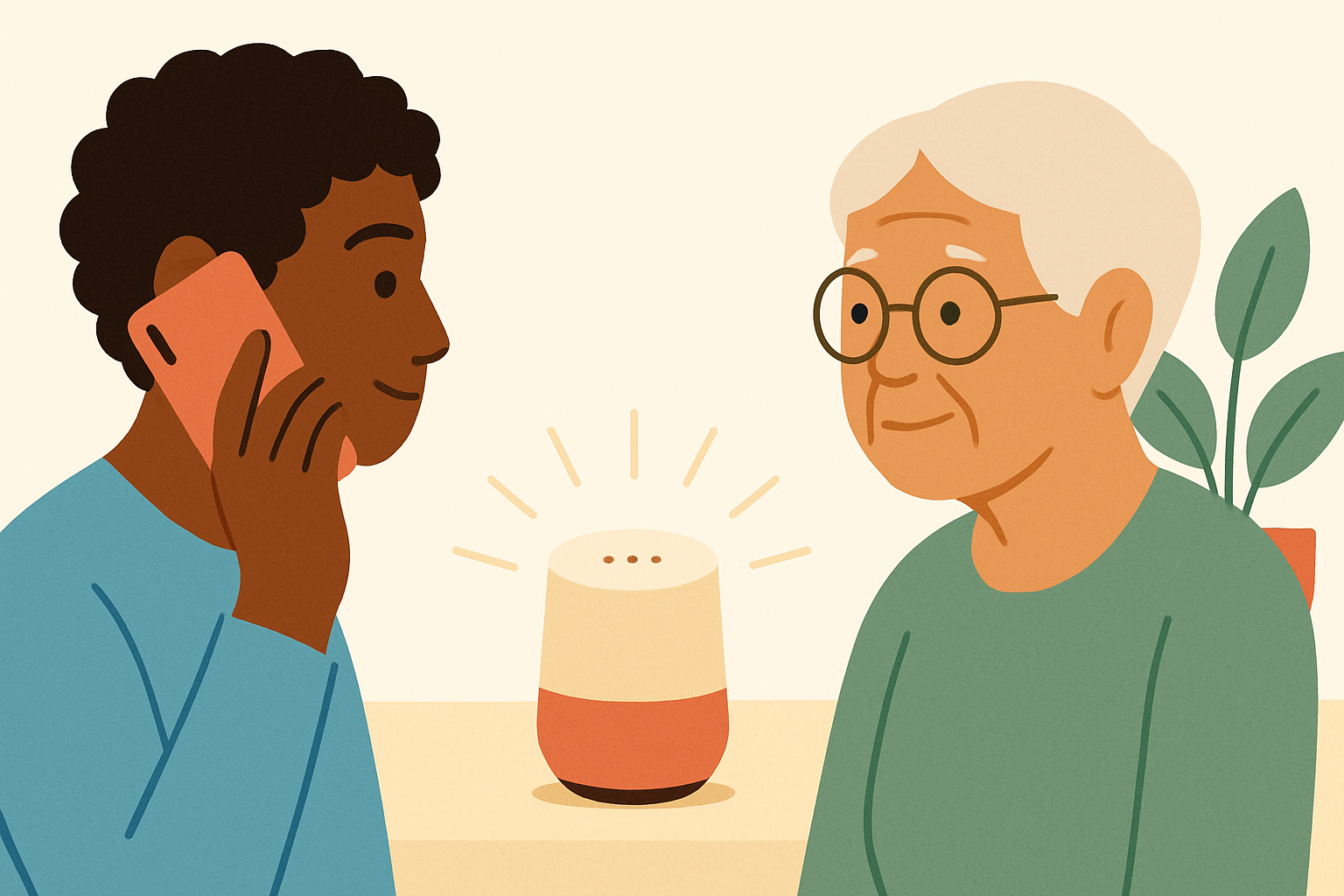
Call your parent on a regular phone first and let them know you’re about to try it. Then say “Alexa, drop in on [your parent’s name].” Their Echo will chime softly, the light ring will flash green, and the connection will open automatically within about five seconds. No one needs to answer. You’ll hear and see whatever is happening near their device. Speak normally and they’ll hear you right away. To end the call, say “Alexa, hang up” or tap End in your app.
Hearing your own voice come through their device the first time is genuinely reassuring. It confirms everything is working before you actually need it.
Step 6: Teach Your Parent What to Expect
This step matters more than most guides admit. Your parent needs to know that when they hear a chime and see a green pulsing light, it means someone is dropping in. They don’t need to do anything to accept it, but they should know not to be startled. Show them they can say “Alexa, hang up” if they want to end the call, or just walk into the room and talk. Some parents find the automatic connection unsettling at first. A short explanation now prevents a lot of confusion later.
Common Problems and How to Fix Them
Even when you follow these steps perfectly, a few things commonly go wrong. Here’s how to fix them:
Drop In Says “This Contact Hasn’t Enabled Drop In”
This almost always means the permissions weren’t saved correctly on your parent’s end. Open the Alexa app while logged into your parent’s Amazon account, go to Communicate, tap the person icon, find your own name in their contacts, and check that Drop In is toggled on. Both sides need to have it enabled, not just yours.
The Echo Is Online But Drop In Won’t Connect
Check whether your parent’s Echo is actually connected to Wi-Fi by asking it a question like “Alexa, what’s the weather?” If it doesn’t respond, it’s offline. The most common cause is a router reboot that assigned the device a new network address, or the Wi-Fi password changed. Walk your parent through unplugging the Echo for 30 seconds and plugging it back in. If the network password changed, you’ll need to reconnect the device to Wi-Fi through the Alexa app.
Your Parent Can Hear You But Can’t Figure Out How to Talk Back
With Drop In, your parent doesn’t need to press anything. They just need to speak toward the device. The confusion usually comes from the device being placed somewhere your parent doesn’t sit near, or from the volume being too low. Move the Echo to wherever your parent spends most of their time, and increase the volume by saying “Alexa, set the volume to 7” during setup.
Drop In Connects But the Audio Is Choppy or Delayed
Choppy audio almost always points to a weak Wi-Fi signal. If the Echo is in a back bedroom far from the router, the connection may struggle. A Wi-Fi range extender (available for around $25 to $50) placed halfway between the router and the Echo can fix this immediately. Alternatively, moving the Echo closer to the router resolves it without any extra hardware.
Tips to Make It Easier Long-Term
- Create a daily check-in routine. Drop In around the same time each day so your parent expects it. It becomes a pleasant connection rather than a welfare check, which matters for your parent’s dignity.
- Put a small laminated card near the Echo with the words “Green light = family calling. Say ‘Alexa, hang up’ to end.” Your parent won’t need it forever, but the first few weeks are much calmer with that reminder there.
- Keep the Echo plugged in permanently. If your parent tends to unplug things to save electricity or because the light bothers them at night, use a small strip of tape over the outlet or have a gentle conversation about leaving it plugged in. An unplugged Echo can’t help anyone.
- Set up Alexa routines for reminders. While you’re in the app, add medication or meal reminders through Alexa Routines. It takes five minutes and turns the Echo into a daily assistant, not just an emergency tool.
- Limit who has Drop In access. Set your parent’s device to “Contacts Only” rather than “My Household” to prevent other family members from dropping in unexpectedly without your parent knowing them as well. Your parent deserves to know everyone who might pop in unannounced.
- Check the device every few months. Software updates occasionally reset permissions. A quick test call every couple of months confirms everything is still working before you actually need it.
Our Recommended Products for This Setup
The Echo device you choose for your parent makes a real difference. Models with screens let your parent see your face when you Drop In, which turns a welfare check into something that actually feels like a visit. We’ve set these up for several parents with varying levels of tech comfort, and the screen models win every time.
- Amazon Echo Show 8 (around $130 to $150) — this is our top pick for elderly parents. The 8-inch screen is large enough to see faces clearly without being so big it feels intimidating. The speakers are loud and clear, which matters for anyone with hearing loss. When we set this up for a parent with early hearing difficulties, the combination of video and louder audio made Drop In calls noticeably easier than voice-only devices. Check price on Amazon →
- Amazon Echo Show 5 (around $85 to $100) — a good option if budget is a concern or if your parent has limited counter space. The screen is smaller but still functional for video Drop In calls. It’s also less visually overwhelming for parents who feel nervous about new technology. Echo Show 5
- Amazon Echo (4th Generation, around $50 to $60) — if your parent truly resists screens, this audio-only model still supports full Drop In functionality. The sound quality is excellent. Your parent won’t see your face, but they’ll hear you clearly, and you’ll hear them. Sometimes audio-only feels less intrusive, which some parents actually prefer. Check price on Amazon →
Frequently Asked Questions
Can I Set Up Alexa Drop In Remotely Without Visiting My Parent’s Home?
You can handle the account setup and contact permissions entirely through the Alexa app from wherever you are. The part that genuinely requires being there in person is the physical device setup: plugging in the Echo and connecting it to your parent’s Wi-Fi for the first time. If you can’t visit, a tech-savvy neighbor or sibling closer to your parent can handle that one piece while you manage everything else remotely through the app.
Will the Drop In Call Wake My Parent Up or Startle Them?
Drop In plays a distinct chime before connecting, so there is a brief audio alert. It won’t sound like an alarm, but it does announce the incoming connection. For parents who are light sleepers or anxious, we recommend avoiding Drop In calls late in the evening and instead setting a regular check-in window during the day. You can also say “Alexa, do not disturb” on your parent’s device during nighttime hours, which will block incoming Drop In calls until you disable it.
Can My Parent Drop In on Me as Well?
Yes, and we’d actually encourage this. Teach your parent to say “Alexa, drop in on [your name]” so the connection goes both ways. Many parents resist technology that feels like surveillance but embrace it when they feel like an equal participant. A parent who can call you just as easily as you can call them is far more likely to actually use the device.
Is Alexa Drop In Private? Could Anyone Drop In on My Parent Without Permission?
Drop In only works between contacts who have explicitly granted each other permission in the Alexa app. A random person can’t access your parent’s device. That said, anyone your parent has granted Drop In access to can connect without the call being answered first. Keep the access list short and review it periodically to make sure only trusted family members have permission.
What Happens If My Parent’s Internet Goes Down?
If the internet goes down, Drop In won’t work because it runs over the home’s internet connection, not a phone line. This is the one real limitation worth planning around. We recommend pairing the Alexa setup with a backup option, such as a medical alert system with cellular connectivity, so your parent still has a way to reach help if the internet is out. A basic cellular medical alert device typically runs around $30 to $50 per month and works independently of home Wi-Fi.
Final Thoughts
Getting this set up takes patience, and it might not go perfectly on the first try. That’s completely normal. The second time you drop in and hear your parent cheerfully telling Alexa to “say hi back,” you’ll know it was worth the effort. Start with a single device in the room your parent uses most, get comfortable with the basics, and build from there. If you’re thinking about extra layers of safety beyond Drop In, pairing this setup with a medical alert system or a simple door sensor gives you even more peace of mind without overwhelming your parent with too much new technology at once.